

Everything you need to know about reading, writing, and engaging with journal entries on My PowerPak.
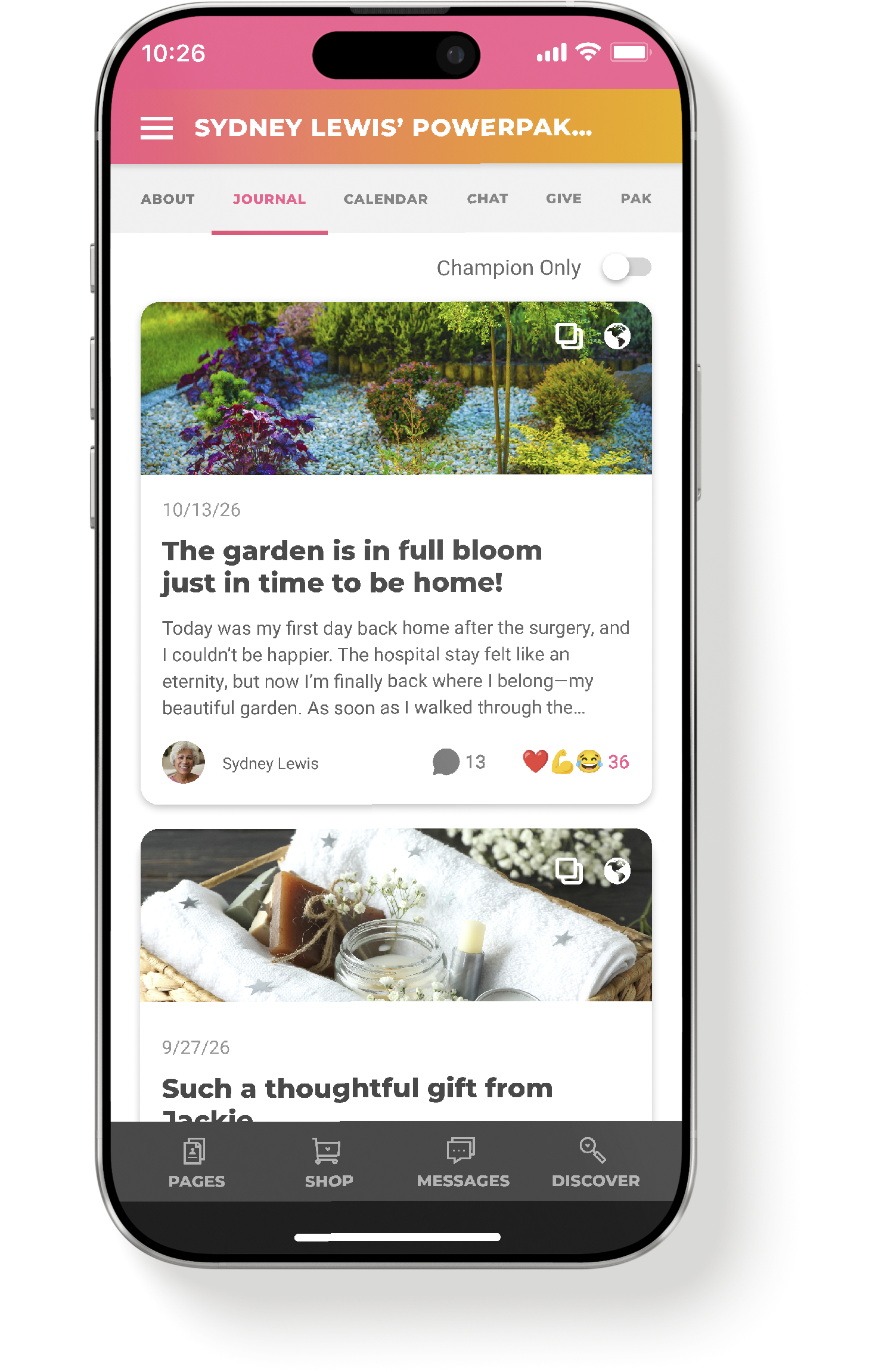
Journal at a Glance
The Journal lives inside each PowerPak Page. Tap the Journal tab in the page navigation to open it. The Journal is where the Champion and Guardians share updates and stories along the care journey, and where the rest of the Pak can read, react, and respond.
Once journal entries are published, they appear as cards, with the most recent entry at the top. Each card shows:
Cover image — the first picture or video in the entry's gallery. Entries without pictures or video display a color gradient instead. If the cover image can't be loaded, the card shows a missing-image icon.
Visibility icon — in the top-right corner of the card, showing who can see the entry (see Visibility below)
Multiple files icon — appears next to the visibility icon when the entry's gallery contains more than one file
Date and title
Preview — the first few lines of the entry
Author, comments, and reactions — the author's name and photo, the number of comments, and the top reactions with a combined total
Use the Champion Only toggle above the entries to show only entries written by the Champion. The toggle appears once at least one journal entry has been published.
Tap any card to open the full entry.
Creating a Journal Entry
Only the Champion and Guardians can create journal entries. If you have permission to post, you'll see the + button in the bottom-right corner of the Journal tab.
Tap the + button on the Journal tab to open the New Journal Entry screen.
-
Every entry needs an Entry Title. Below it, write your entry in the text box. The toolbar lets you add bold, italic, and underlined text, bulleted and numbered lists, and links. Press Enter to start a new paragraph.
-
Drag and drop files onto the upload area, or tap it to browse your device.
Accepted formats: JPG, PNG, and PDF for images and files; MOV and MP4 for video.
Maximum file size: 50 MB per file.
The first picture or video becomes the entry's cover image on the Journal tab. To change the order, drag and drop the thumbnails into place.
Tap the ✕ on any thumbnail to remove it before publishing.
-
Tap the pencil icon on an image thumbnail to open the image editor. Tools include Crop (with rotate, flip, and scale), Filter, Finetune, Annotate, Decorate, Frame, Redact, and Resize. Tap Done to save your changes. The editor works with select image formats only — if you don't see the pencil icon on a thumbnail, editing isn't available for that file.
When your entry is ready, choose its Visibility (see below) and tap Publish.
Visibility
Visibility determines who can see your entry, along with its comments and reactions. The default is Public. Tap the Visibility field to choose from these options:
Public — visible to all members of your PowerPak Page.
Inner Circle — visible only to Pak members with the Inner Circle label.
Private — visible only to you.
Inner Circle Except Champion — visible to Inner Circle members, but not the Champion. This option isn't available when the Champion is the author.
The visibility icon appears on the entry's card and at the top of the entry. You can change the visibility at any time by editing the entry.
Saving a Draft with Finish Later
Not ready to publish? Tap Finish Later at the bottom of the New Journal Entry screen. Your title, text, and visibility are saved as a draft.
Your draft appears at the top of the Journal tab as a grayed-out card, with "Draft" at the start of its title. Only you can see it. To pick up where you left off, tap the draft card or the + button.
A few things to keep in mind about drafts:
You can have one draft at a time.
Pictures and videos are not saved with a draft. Add them again before you publish.
Tapping Cancel discards your draft.
Editing or Deleting an Entry
Open the entry and tap the ellipsis menu (⋮) in the top-right corner of the screen. The menu is visible to the entry's author only. Tap Edit to make changes, or Delete to remove the entry. Before an entry is deleted, you'll be asked to confirm. Deleting can't be undone — the entry's comments, pictures, and videos are deleted along with it.
Sharing an Entry
Tap the share icon next to the entry's date. On mobile, your device's share tray opens; on desktop, a pop-up shows your sharing options, such as email, messages, or copying the link.
The shared link works like an invitation to the PowerPak Page the entry belongs to:
If the person opening the link is already in the Pak, they're taken directly to the journal entry.
If they aren't in the Pak but have a My PowerPak account and are logged in, the invitation is processed right away.
If they have an account but aren't logged in, they'll be asked to log in first.
If they don't have an account yet, they'll need to register before they can view the entry.
Because the link invites people to your PowerPak Page, share it only with people you'd like to welcome into the Pak. You can also set your PowerPak Page's privacy setting (separate from an entry's visibility) to Private, so anyone who tries to join through a shared journal entry has to be approved before they're added.
Image Gallery
When you open a published journal entry, the pictures, videos, and files the author added appear in a gallery at the top of the entry. The first item in the gallery is also the cover image on the entry's card.
What you see in the gallery depends on how many files the entry includes and what type they are:
Visibility icon — in the top-right corner of the gallery, showing who can see the entry (see Visibility above)
Navigation arrows — appear when the gallery has more than one file. Tap the arrows to move between files.
Full screen button — tap it to view the current picture or video in full screen.
File counter — in the bottom-right corner, showing which file you're viewing and how many are in the gallery. For example, 1/3 means you're viewing the first of three files.
If a file can't be displayed, a missing-image icon appears in its place. To fix this, the author can edit the entry and either remove the file or upload it again.
Reactions & Comments
Anyone who can see a journal entry can react to it and join the conversation in the comments.
-
You can react to journal entries, comments, and replies. Tap Like to add the default reaction, a heart (❤️). To choose a different reaction, long press (mobile) or hover (desktop) over Like to open the reaction picker, then choose from seven emoji reactions: ❤️ 🤗 💪 😂 👏 🙌 😢.
The journal entry screen shows a count for each reaction, and the entry's card on the Journal tab shows the top reactions with a combined total.
-
Type in the Add a comment… box and tap the send button. To add a picture, tap the paperclip icon — comment attachments can be JPG or PNG files up to 10 MB. The newest comments appear at the top of the comments section. Tap Reply beneath a comment to respond to it directly.
-
Tap the ⋯ next to your own comment or reply and choose Delete. You'll be asked to confirm, and deleting can't be undone. Comments can't be edited, so if you need to make a change, delete the comment and post it again.
Reporting Content & Blocking Users
Tap the ⋯ next to someone else's comment or reply to display two options:
Report Content — sends the comment to the My PowerPak team, who will review it against our Terms of Use.
Block User — hides that person's content from you throughout the PowerPak Page. Blocking only changes what you see; other Pak members can still see that person's content.
Notifications
Here's a summary of journal actions that trigger notifications:
New journal entry — when an entry is published, Pak members who can see it receive a push and email notification.
New comment — the entry's author receives a push notification when someone comments on their entry.
Replies to comments, reactions, and edits to an entry currently don't trigger notifications.
Frequently Asked Questions
-
Only the Champion and Guardians can write journal entries, so the + button appears only for them. Supporters can still read, react to, and comment on the entries they can see.
-
Drafts save your title, text, and visibility, but not pictures or videos. When you return to your draft, add your media again before you publish.
-
No. Entries with this setting are visible to the Inner Circle only, with the Champion excluded. That's also why that visibility option doesn't appear in the list when the Champion is the one authoring the journal entry.
-
The Champion and all Guardians are in the Inner Circle by default. They can also add specific Supporters to the Inner Circle.
-
Yes — open the entry, tap the ⋮ menu, choose Edit, and update the Visibility. Keep in mind that changing the visibility doesn't send a notification, so anyone who can newly see the entry won't be alerted to it.
-
Each picture or video added to a journal entry can be up to 50 MB. Pictures attached to comments are limited to JPG or PNG files up to 10 MB. If a file is too large, remove it and try a smaller version.
-
A missing-image icon appears when a file in the gallery can't be displayed. If that file is first in the gallery, the entry's card on the Journal tab shows the same icon.
The most common cause is publishing an entry before all of its files have finished uploading. To fix it, the author can edit the entry and either remove the affected file or upload it again. To avoid the issue, wait until every file has finished uploading before publishing or saving your changes.
-
If the person following the link is already a member of your PowerPak Page, they're taken straight to the entry.
If they aren't a member of your PowerPak Page, or don't have a My PowerPak account yet, the link works like an invitation to your page:
Registered users will be asked to log in (if they aren't already), and the invitation is processed.
Non-users will need to create a My PowerPak account first.
Depending on your PowerPak Page's privacy setting, new members either join the Pak right away or wait for a Guardian to approve their request.
-
That person's content is hidden from you throughout My PowerPak. Blocking only affects what you see; everyone else in the Pak can still see their content.
Still Have Questions?
We're here to help. Use the form below to reach our support team and we'll get back to you within 24 hours (response times may be longer on weekends).
Last updated 10/16/26