


My PowerPak Support
Downloading
Where can I download the My PowerPak App?
The My PowerPak app is available for download on the Apple App Store and Google Play.


App Updates
How do I get the latest version of My PowerPak?
For web users, any updates that we release are automatically pushed out. Because the updates are delivered automatically, you may see an “Updating the app” notification pop up on the browser during use. For native app users, the My PowerPak app will receive updates as they are approved for release by Apple and Google.
Registration
-
Yes, before you can join any PowerPak pages you will need to have first registered for a My PowerPak account. You can register for an account by clicking the “Sign Up” button on our website, by visiting app.mypowerpak.com or by clicking on an invitation link that an existing My PowerPak user shares with you.
If you haven’t created an account prior to clicking or tapping on an invitation link for someone’s PowerPak page, you will be asked to register for an account. Once you complete the registration process you may need to locate and click the original invitation link again before that PowerPak page will be visible to you.
My Account
-
If you would like to delete your My PowerPak account, follow these steps:
Log into your My PowerPak account via the web or app.
Open the main menu and navigate to Account Settings.
Scroll down to the Delete Your Account section and click or tap Delete Account.
Account deletion may take up to 45 days to complete. You will retain access to your account until the request is processed. Once finalized, you will no longer be able to access My PowerPak, including any Paks you have joined. This action cannot be undone.
-
Once your My PowerPak account is deleted, your data will be managed in accordance with our Terms of Use and Privacy Policy.
Privacy
-
Each My PowerPak user has a personal profile to which they can add personal details and a profile image. Some of the information provided during registration is used to populate the personal profile, while other information can optionally be added via the profile edit screen. Champions and Guardians in any PowerPak Page that you join will have visibility to your name, profile picture and email address. Any non-admin members of a PowerPak Page will only see your name and profile picture.
-
Content-level privacy is established using visibility settings that are available during the creation of calendar events and journal entries within each PowerPak Page.
Public (Default)
All calendar events and journal entries created with this option selected will be visible to all members of the specific PowerPak Page they are created within.
Private
All calendar events and journal entries created with this option selected will be visible only to the user that created the event or entry and the Champion of that specific PowerPak Page. Supporters do not have the ability to create private calendar events or journal entries.
Inner Circle
All calendar events and journal entries created with this option selected will be visible only to members of that specific PowerPak Page who have been labeled as Inner Circle members.

Personal Profile
-
When you upload a profile picture, My PowerPak crops it into a square image. Any image that isn’t already a square will be cropped from the center of the image by default. To achieve the best presentation for your personal profile picture, we recommend cropping the image you would like to use into a square format prior to uploading it.
PowerPak Pages
What is a PowerPak Page?
The true heart and soul of My PowerPak are PowerPak Pages, which users create for themselves or a loved one facing hardship. PowerPak Pages bring the caregivers (Guardians), care-receivers (Champions) and Supporters together in a central place where all of the interaction and support happens.
Users can invite friends, family members and loved ones to join a PowerPak Page via text, social media, email, etc. using a sharable link. Each PowerPak Page contains a journal, calendar, chat and wishlist that is unique to that page, and any user can create or be a member of multiple PowerPak Pages simultaneously.
What do the different titles like “Champion” and “Guardian” mean?
Roles are used within a PowerPak Page community to organize users and allow/restrict access to administrative options and/or visibility to certain content that is created within a PowerPak Page.
-
“Champions” are the individuals that receive care or support on our platform. A Champion role is established automatically as part of the PowerPak Page creation process based on the option selected for who the page is for. If a user chooses to create a PowerPak Page for themself, they become the Champion for that page by default. If a user chooses to create a PowerPak Page for someone else, they become the Founding Guardian (see below) by default and the person they created the page for becomes the Champion.
-
“Guardians” are key individuals who help the Champion manage their PowerPak Page, or manage a PowerPak Page on a Champion’s behalf and there are 2 types of Guardian roles established within a PowerPak Page. “Founding Guardians” are users who create a PowerPak Page on behalf of someone else and become the Founding Guardian for that PowerPak Page by default. “Invited Guardians” are users who help the Champion and/or Founding Guardian manage their PowerPak Page. While the “Invited” designation doesn’t appear anywhere in the My PowerPak app, these Guardian roles are assigned manually to PowerPak Page members by the Champion and/or Founding Guardian.
-
“Supporters” are the individuals who provide support for the Champion through activity on their PowerPak Page. While Supporters have no administrative control within a PowerPak Page, they do have the ability to view, interact with and post content within a PowerPak Page (where the Champion or Guardian(s) have allowed them to do so).
-
“Inner Circle” is a designation given to specific members of a PowerPak Page. This designation qualifies them to be selected for access to exclusive content created within a page. Champions and Guardians receive this label by default and can choose which Supporters receive this designation within a PowerPak Page that they manage.
How do I manage who can access a PowerPak Page I created?
The privacy of the PowerPak Page is managed at the invitation settings level. Only Champions and Guardians have the ability to change the privacy setting for a PowerPak Page invitation link. The options for the invitation link are defined as follows:
-
This is the default privacy setting for the PowerPak Page invitation link. With this option selected, a Champion or Guardian must review and approve all My PowerPak users who follow this link to join the PowerPak Page.
-
With this option selected, any My PowerPak user who interacts with this link will join the PowerPak Page automatically as a Supporter. A Champion or Guardian can manage Members and Roles for a PowerPak Page at any time by navigating to the “Pak” tab within a PowerPak Page that they manage.
How do I join a PowerPak Page?
Because of our commitment to the privacy of our users, PowerPak pages are invite-only. There is no search functionality within the platform, so the only way to join a PowerPak page is via an invitation link that has been shared by an existing member of that page. When you click or tap on an invitation link that has been shared, you will experience one of the following scenarios:
-
ANDROID & iOS USERS
If you already have a My PowerPak account and the invitation link you are accessing is for a PowerPak page set to “Public”, you will immediately have access to the page once you click or tap the link (login required).
Once you have joined a page, it can be accessed anytime from the Pages tab of the platform – you do not need to use the invitation link for that page again.
-
ANDROID & iOS USERS
If you already have a My PowerPak account and the invitation link you are accessing is for a PowerPak page set to “Private”, you will receive a notification that your membership for that page is pending approval. The page will appear in your list of pages, but it will not be accessible until an admin for the page approves your membership. You will receive a notification when your membership is approved and you have access.
Once your membership for a page is approved, that page can be accessed anytime from the Pages tab of the platform – you do not need to use the invitation link for that page again.
-
ANDROID USERS
If you do not have a My PowerPak account, clicking on an invitation link will prompt you to sign up for an account. Once you complete the registration process, you should have access to the PowerPak page.
Once you have joined a page, it can be accessed anytime from the Pages tab of the platform – you do not need to use the invitation link for that page again.
iOS USERS
If you do not have a My PowerPak account, clicking on an invitation link will direct you to the App Store to download the My PowerPak app. Once the app has downloaded, open it and a prompt will appear asking you to allow My PowerPak to paste from Safari. Tap “Allow Paste” and proceed to register for an account within the app. Once you complete the registration process, you should have access to the PowerPak page.
Once you have joined a page, it can be accessed anytime from the Pages tab of the platform – you do not need to use the invitation link for that page again.
-
ANDROID USERS
If you do not have a My PowerPak account, clicking on an invitation link will prompt you to sign up for an account. Once you complete the registration process, you will receive a notification that your membership for that page is pending approval. The page will appear in your list of pages, but it will not be accessible until an admin for the page approves your membership. You will receive a notification when your membership is approved and you have access.
Once your membership for a page is approved, that page can be accessed anytime from the Pages tab of the platform – you do not need to use the invitation link for that page again.
iOS USERS
If you do not have a My PowerPak account, clicking on an invitation link will direct you to the App Store to download the My PowerPak app. Once the app has downloaded, open it and a prompt will appear asking you to allow My PowerPak to paste from Safari. Tap “Allow Paste” and proceed to register for an account within the app. Once you complete the registration process, you should have access to the PowerPak page.
Once your membership for a page is approved, that page can be accessed anytime from the Pages tab of the platform – you do not need to use the invitation link for that page again.
What is the “Allow Paste” prompt that appears when I open the app?
In order for the invitation links to pass the PowerPak Page data through the new user registration process, iOS users will need to tap “Allow Paste” when this prompt appears. If you do not allow My PowerPak to paste from Safari, the PowerPak Page you are attempting to join will not appear in your list of pages and you will need to relocate the invite link for the page you are trying to join and tap it again. Only first time users who are directed to download the app after tapping an invite link will see this prompt.
How do I make an existing user the Champion of a PowerPak Page?
When a PowerPak Page is created using the “For Someone Else” option, the creator of that page is asked to provide some basic information for that person which includes an email address. The email address provided during the page creation process is how My PowerPak links a user with the Champion role of a specific PowerPak page.
After you create a PowerPak Page for someone else you will notice that there is a default icon next to the Champion’s name when you first view the member list under the “Pak” tab of the page. Before an existing My PowerPak user can be linked to the Champion role they must first be sent an invitation link to join that page.
If the invitation link is “Public”, that user will automatically be assigned the Champion role for the page as long as the email address that user created their personal account with is the same as the email address that was entered for the Champion during the PowerPak Page creation process.
If the invitation link is “Private”, that user will need to be promoted to the Champion role manually by a Guardian (admin) of that page. This can be done when reviewing or managing users under the “Pak” tab of a page.
How do I create a PowerPak Page for a child that isn’t old enough to have an email address?
If you are interested in creating a PowerPak Page for someone else, you must provide an email address for them that is different from the one that you personally use to access your own My PowerPak account. In the event that the person you you would like to create a PowerPak Page for is too young or does not have their own email address, there are a couple different ways to satisfy the email requirement:
-
In the event that you have multiple personal email addresses, you can consider using one of the alternatives when creating a page for your child.
-
You may also be able to create an alias or variation of your own email address (check with your provider), which will appear different, but email will still be delivered to your own inbox. An example is yourname@gmail.com is your address, and the alias is yourname+childname@gmail.com. Both addresses will be delivered to the same inbox, and the alias will work as a unique identifier for your child’s My PowerPak account.
How will My PowerPak crop the cover photo for my page?
Cover images crop differently than profile images. When you upload a cover image for a PowerPak page, the app crops it into a 16:9 ratio image for displaying. Any image that isn’t already in a 16:9 format will be cropped from the center of the image by default. To achieve the best presentation for your cover image, we recommend only using landscape-oriented images or cropping the image you would like to use into a 16:9 format prior to uploading it.
A PowerPak Page that I am trying to join isn’t showing up in my list of available pages even though I clicked an invite link.
The most common cause of a PowerPak Page not appearing in your list of available pages is rejecting My PowerPak’s ability to “paste” from Safari when prompted. This issue is specific to iOS users who haven’t registered for a My PowerPak account and have not yet downloaded the My PowerPak app.
In order for the invitation links to pass the PowerPak Page data through the new user registration process, first-time iOS users will need to tap “Allow Paste” when this prompt appears in the app. If you have denied My PowerPak the ability to “paste” from Safari you will need to relocate the invitation link and try joining the PowerPak Page again once you have completed the new user registration process.
Calendar
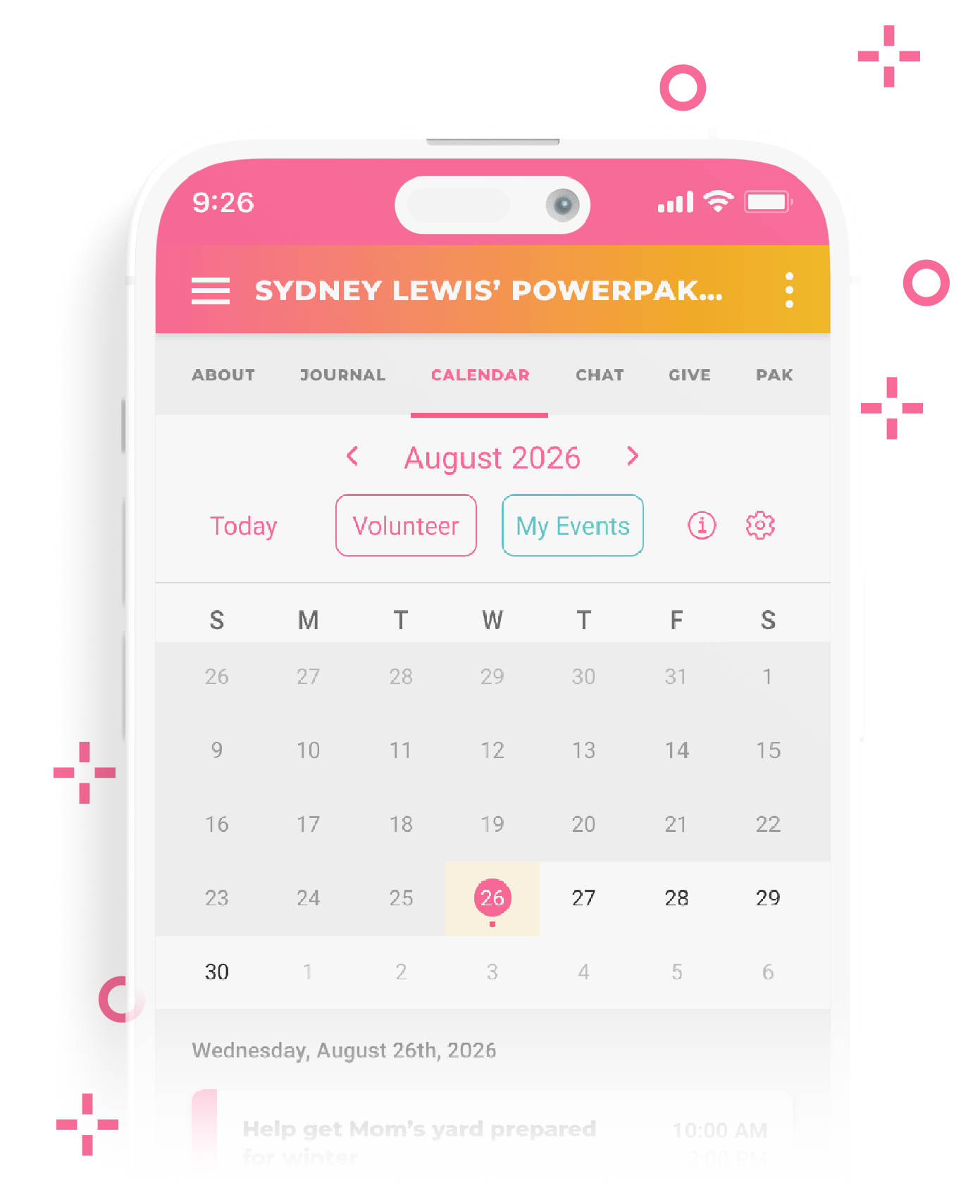
Everything you need to know about creating, managing, and participating in calendar events on My PowerPak.
Journal
Overview
The Journal makes it easy to share updates, stories, and photos with your care community—all in one place. Whether you’re documenting the ups and downs of caregiving or celebrating small wins along the way, the Journal helps you express yourself and stay connected. Your loved ones can show support through comments and hearts, turning each post into a source of encouragement.
Learn how to create a journal entry and manage the visibility settings.
Fundraising
When expenses add up, give your community a simple way to pitch in.
Fundraising in My PowerPak is powered by Stripe, a secure third-party payment processor. To locate fundraising features, open one of your PowerPak Pages → Navigate to the Give tab → At the top, use the toggle to switch from Wishlist to Donations.
Add a personalized story (optional)
A personal story helps your care community understand what donations will support—whether it’s medical expenses, home care equipment, or other needs. Sharing your story adds meaning and can inspire more contributions.
Set up your fundraising account
Tip: For the smoothest setup experience, make sure all Champion details are complete and accurate before creating your fundraising account. My PowerPak automatically passes some Champion details to Stripe to save time during setup.
-
From the Donations screen, tap/click Set up fundraising. You’ll be redirected to My PowerPak’s fundraising portal in Stripe, where you’ll complete account setup.
The information provided should belong to the recipient of the donations.
If setting up fundraising on someone’s behalf, ensure you have access to the contact details you enter. You’ll need these to manage the account later.
-
Stripe uses the email and phone number entered for verification and important account updates (such as required actions that can pause donations or payouts). If prompted, check your inbox or text messages for a Stripe verification code to continue setup.
-
Choose Individual or Sole Proprietorship from the dropdown. If you haven’t formally registered as a business, select Individual.
-
Payouts are how donated funds reach your bank account. Choose Bank Account or Debit Card to receive funds. Stripe may request additional verification. Learn more about payouts.
-
Item descriptionBefore submitting, double-check your Business Type, Personal Details, and Payout Details. Donations will not process if Stripe requires further action (e.g., verifying your email, adding payout details, or confirming your identity). Once you tap submit, if you aren’t automatically redirected back to My PowerPak, simply reopen the app.
If setup was successful, you’ll see donation options appear on your page. Champions and Guardians will also see a Manage Fundraising Account link—this opens your Stripe Express dashboard for account settings, transactions and payouts.
Accessing your Stripe Express account
You can log in to your Stripe Express dashboard anytime at connect.stripe.com/express_login. From there, you can track payments and payouts, manage tax forms and view or update account details. For help with your Stripe Express account, visit Stripe Express Support.
Frequently Asked Questions
-
All payouts are handled by Stripe and are processed weekly on Monday (based on Stripe’s current payout schedule). For up-to-date payout info, visit Stripe’s payout support page.
-
Only the Champion or those with the Guardian role can set up donations for a PowerPak Page.
-
Yes. Stripe is certified to PCI Service Provider Level 1, the most stringent level of payment security certification.
Troubleshooting
My PowerPak does not manage or troubleshoot Stripe accounts directly. If you experience an issue within Stripe (e.g., identity verification, payout failures, tax forms), please contact Stripe Support for help.
-
This appears when Stripe needs you to complete an action—such as verifying your email, confirming your bank info, or updating expired details.
To fix it:
Check your inbox for messages from Stripe about your fundraising account.
Or log in at connect.stripe.com/express_login and look for “Required Action” alerts.
-
This usually indicates that the phone number listed in your Champion details is invalid.
To fix it:
Follow the prompt in the app alert.
Or open your PowerPak Page’s Edit screen, go to Mailing Address, and confirm that the primary phone number is correct.
Notifications
-
We are aware that some people using Android devices can experience the app failing to send notifications even when the Android system notifications are enabled in the app. While we are unsure of the exact cause, it appears to have something to do with app inactivity. If you notice that you are not receiving notifications when you think that you should be we suggest trying one of the following:
Cycle Push Notifications Off/On
Go to Notification Settings within the app by navigating through the menu (access with the three lines at the upper left corner)
Turn Push Notifications OFF
Fully close out of the app (close and swipe it away)
Go back into the app via the icon on their home screen and access the menu
In Notification Settings, turn Push Notifications ON
Languages
Is My PowerPak available in other languages?
If you'd like to experience My PowerPak in a different language, the browser version of our app can be easily translated using web browser translation features or extensions.

-
If your Chrome browser is up to date, you can effortlessly translate the browser version of My PowerPak. To get started, navigate to app.mypowerpak.com, log into your account, and click the Google Translate icon located on the right side of the search bar. Once the translate widget appears, click the “⋮” icon, select “Choose another language…”, and pick the language you prefer to translate the content into.
-
If the search bar translation method isn't available, you can still experience My PowerPak in multiple languages using the Google Translate Chrome browser extension. Once you've added the extension to your browser, simply navigate to app.mypowerpak.com, log into your My PowerPak account, and click the extensions icon (puzzle piece) located in the top right corner of the browser. When the translate widget appears, click “Translate This Page”, and translation options will display at the top of the page.
-
Instructions for translating web content using Safari can be found here.
-
Instructions for translating web content using Microsoft Edge can be found here.